
Play Pixel Kingdom Wars as a native Android app: the Solana dApp Store on Seeker, the Android APK for other phones, in-app updates and download checks.
Pixel Kingdom Wars runs as a native Android app as well as in the browser, with the same account, the same bases and the same battles on both. On a Solana Seeker you install it from the Solana dApp Store; on any other Android phone you can install the Android APK from our download page, and the app keeps itself up to date.
Quick facts
- One account everywhere. Sign in with the same wallet in the app and in the browser and you see the same kingdom.
- Solana Seeker: install from the Solana dApp Store — start at Get the app.
- Other Android phones: download the Android APK from /download. The page always shows the current version, file size, SHA-256 checksum and signing certificate.
- Requirements: Android 9 or later on a 64-bit phone (arm64 or x86_64).
- Updates arrive inside the app. When a new version is ready the app offers it; you accept and Android installs it.
- Browser: no install needed at all — play.pixelkingdomwars.com.
What the app adds
The Android app is a native client, built for phones and for the Seeker in particular:
- The Realms Globe and realm maps. Spin the Realms Globe, a painted globe of the eight realms, dive into a live overview of a whole realm, and zoom down to true base scale. Shielded kingdoms show a dome. See Realms and the world.
- The special islands. Solana Island, Seeker Island and the Divine Isle are already on the Realms Globe, marked as coming soon.
- Native wallet sign-in. The app connects to your wallet app through Mobile Wallet Adapter; purchases go straight to your wallet for approval. See Wallets and sign-in.
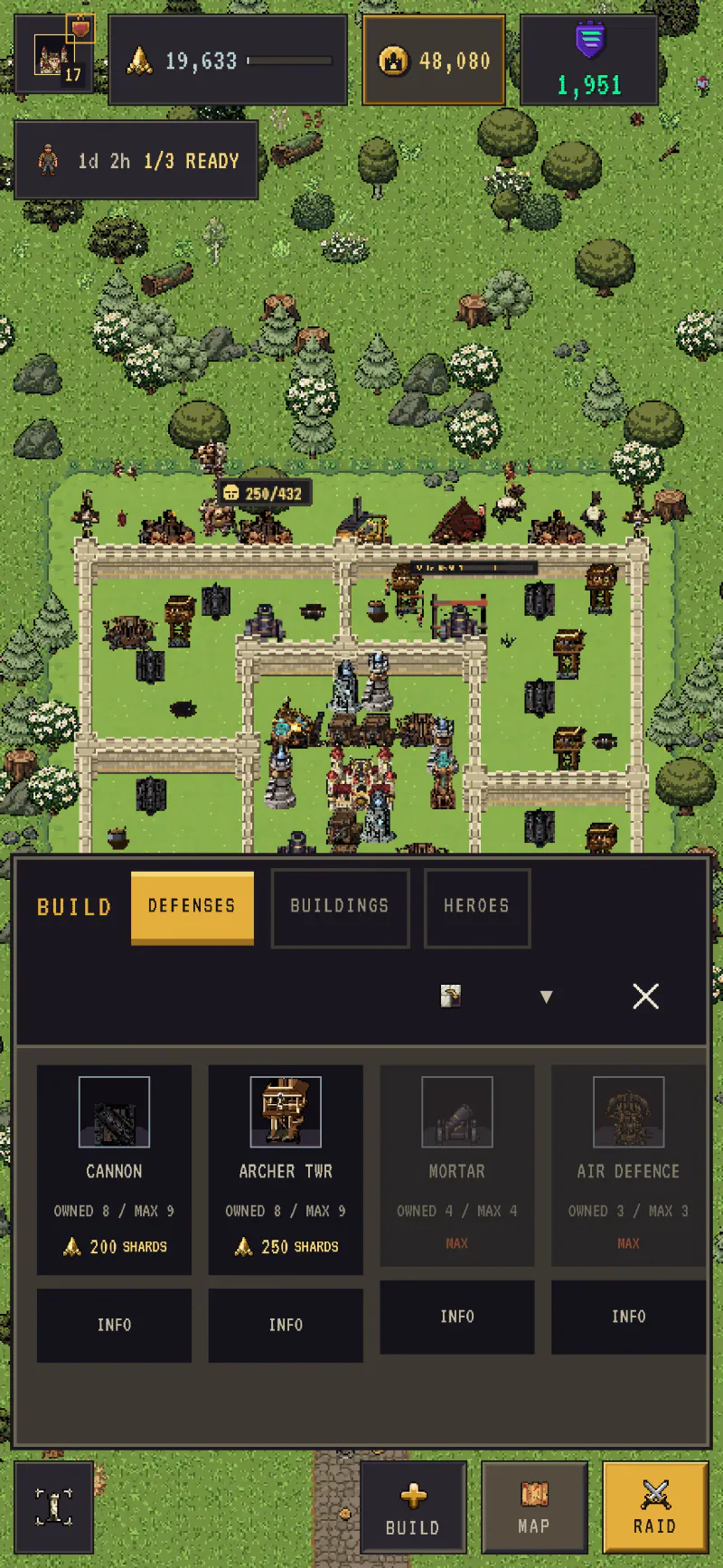
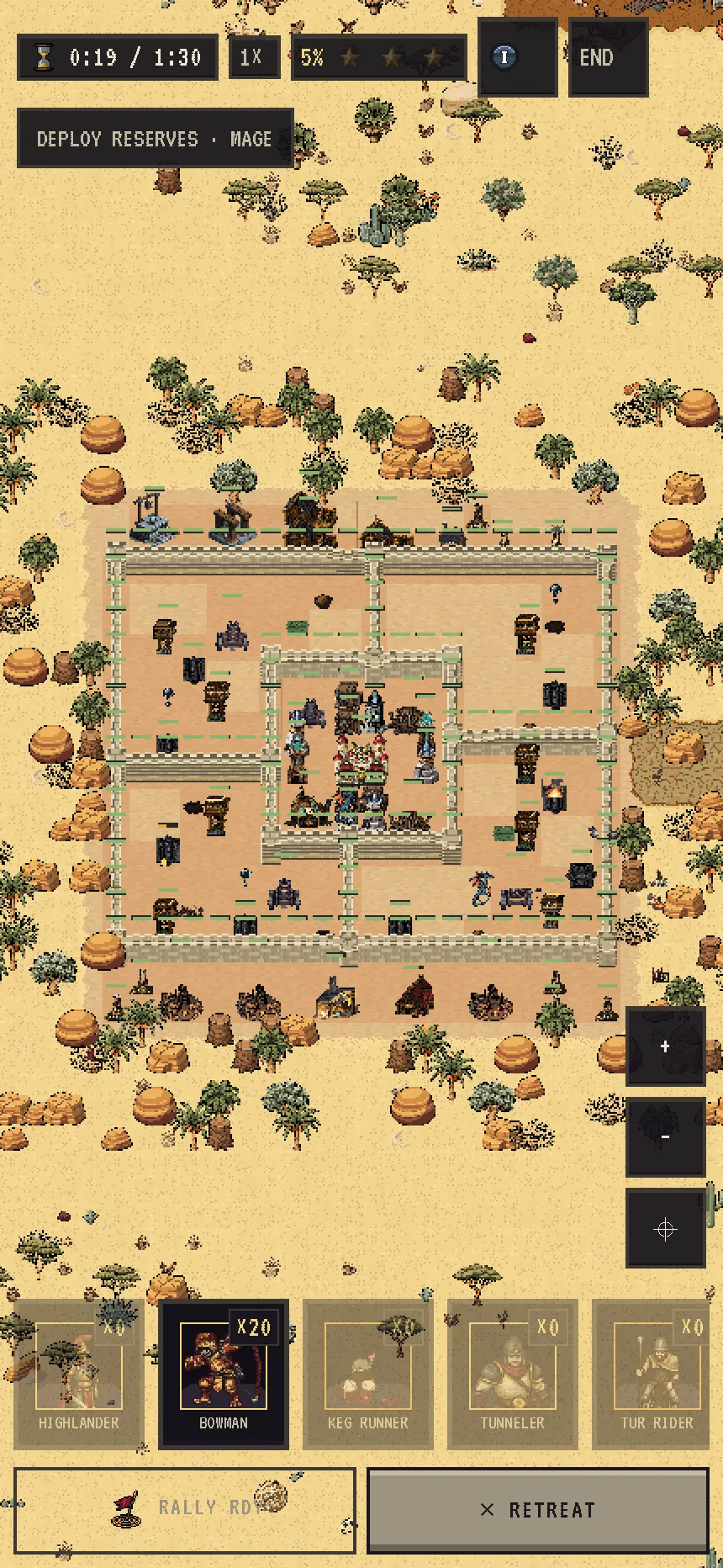
- A phone-first camera. Your base fills the screen at the widest zoom, and you pan across it. In battle you can reach the whole field to deploy.
- In-app updates, below.
Installing
On a Solana Seeker
Open Get the app and follow the Solana dApp Store link, or search the dApp Store for Pixel Kingdom Wars. Updates come through the store and through the app itself; either way you stay on the same install.
On any other Android phone
- Open /download on your phone and tap the download button. The page shows the version, size and checksum of the file it serves.
- Open the file. Android asks you to allow Install unknown apps for your browser or file manager the first time — allow it for that app only.
- Google Play Protect may show a warning for apps installed from outside Google Play. Read it, then choose to install if you trust the source.
- Open Pixel Kingdom Wars and sign in with your wallet.
Checking a download yourself
The download page lists the file's SHA-256 checksum and the signing certificate fingerprint. To check a file on a computer, run shasum -a 256 on it (macOS or Linux) or certutil -hashfile <file> SHA256 (Windows) and compare the result with the page. If they differ, delete the file.
Updates
- The app checks for new versions and shows an update offer when one is ready. Accept it and Android installs the new version over the old one; you stay signed in and your content is kept.
- If Android needs a permission to install the update, the app takes you to the right settings page and picks up again when you return.
- Every update is verified before it is installed: the app checks the file's checksum and signer and refuses anything that does not match.
- Very old versions. If an installed version falls below the minimum the game supports, it can still sign in and show your base, but you need to update before you can fight, build or buy.
- Release notes for every Android version are on the changelog.
Browser or app?
Both are the full game. The browser is quickest to start and works on desktop, Android and iPhone; the Android app adds the Realms Globe with realm maps, native wallet connection and in-app updates. You can use both with the same wallet.